Sole proprietors and micro-business owners in South Africa who manage their own SARS filings without an accountant.
How it works
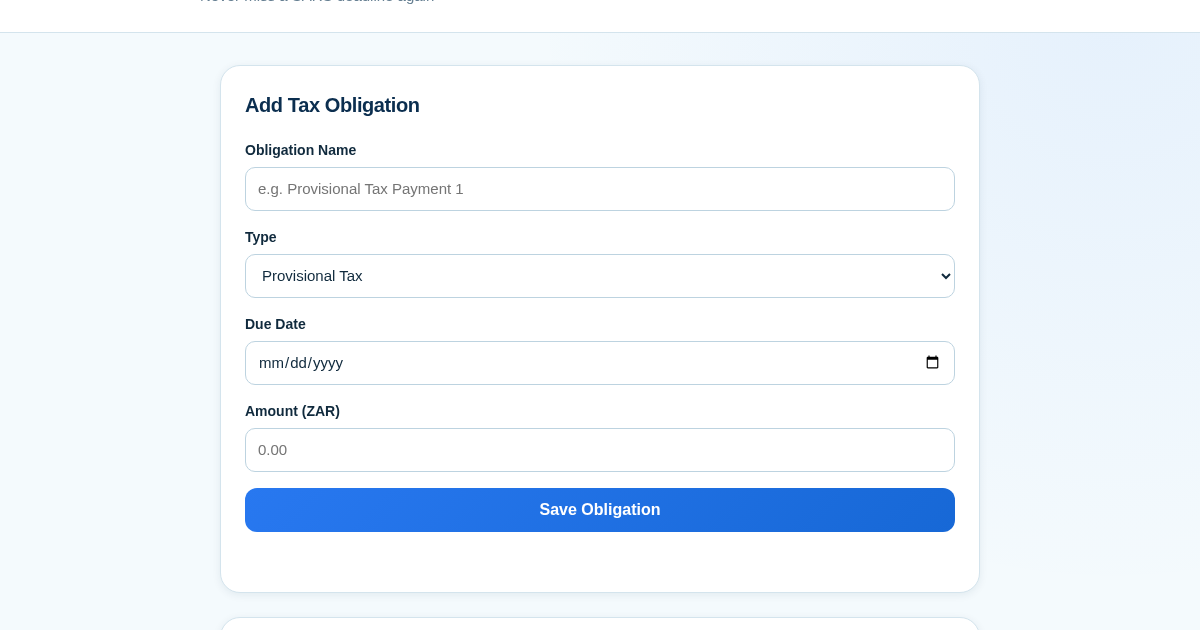
- Add a tax obligation by entering its name, type, due date, and amount, which is saved to the server.
- View the dashboard with all obligations sorted by due date, showing days remaining for each.
- Mark an obligation as Paid or Filed using the per-row status control, updating its status.
- All obligations and their statuses are saved server-side and reloaded on every page visit.
What you gain
- Never miss a SARS deadline with a clear countdown.
- See all obligations in one sorted list.
- Track status as Pending, Paid, or Filed.
- Keep a persistent history of every filing and payment.
- No accounts or setup required—just open and track.
- Data stays saved even after closing the tab.
Screenshot
Technical details
How to set up & use
- Buy the license — your key (lic_...) appears on the order page and in your email.
- Sign in at app.synoriaai.com with your license key.
- No installation — the product runs in your browser, on your own isolated instance.
- 1. Open FileWatch SA in your browser — no sign-up needed.
- 2. Enter the obligation name (e.g., 'Provisional Tax Payment 1'), choose the type (Provisional Tax, VAT, or Annual Return), set the due date, and add the amount.
- 3. Click Save — your obligation appears in the list with days remaining.
- 4. When you've paid or filed, click the 'Mark Paid' or 'Mark Filed' button on that item.
- 5. Close the tab anytime — your data stays saved, and reopening shows your list and history.
Frequently asked questions
Is my tax data safe if I close the tab?
Yes, your data is saved locally in your browser. It persists even after closing the tab, and you don't need an account.
Does FileWatch SA calculate tax amounts or file returns for me?
No, it only tracks deadlines and payment/filing status. You enter the amounts and mark items as paid or filed yourself.
Can I see a history of what I've paid or filed?
Yes, every item you mark as paid or filed is kept in your saved history, so you can review past obligations.
Related products
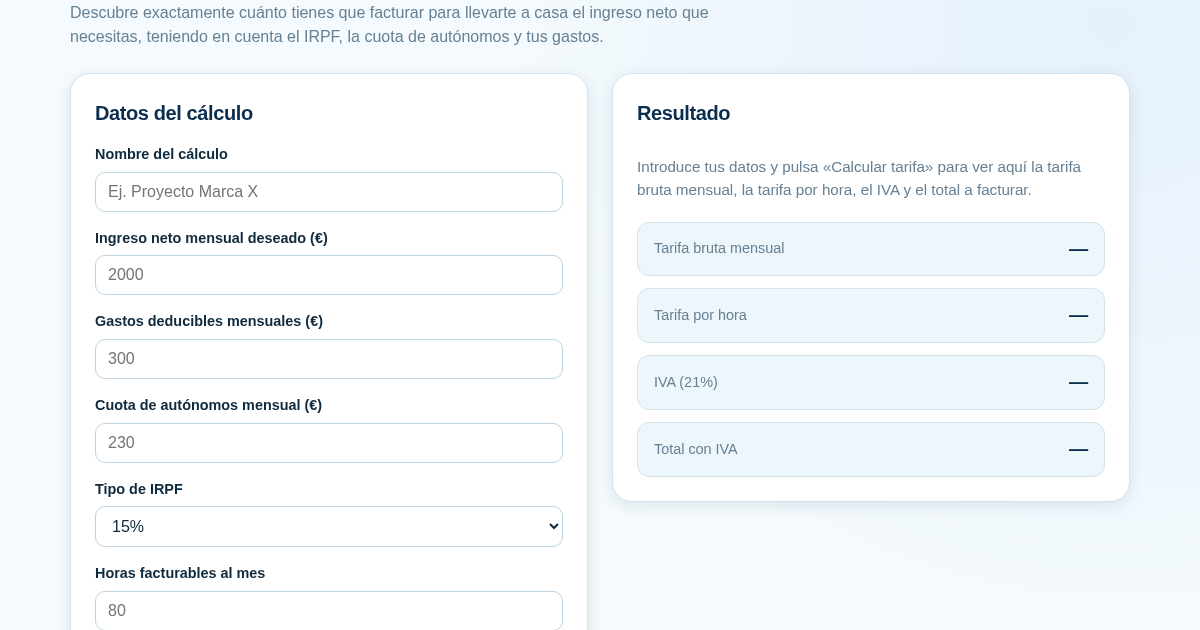
Calculadora de Tarifas para Autónomos
Muchos autónomos fijan sus tarifas sin saber cuánto necesitan facturar realmente para alcanzar el ingreso neto que quieren. Esta calculadora parte del neto mensual deseado y calcula la facturación bruta necesaria…
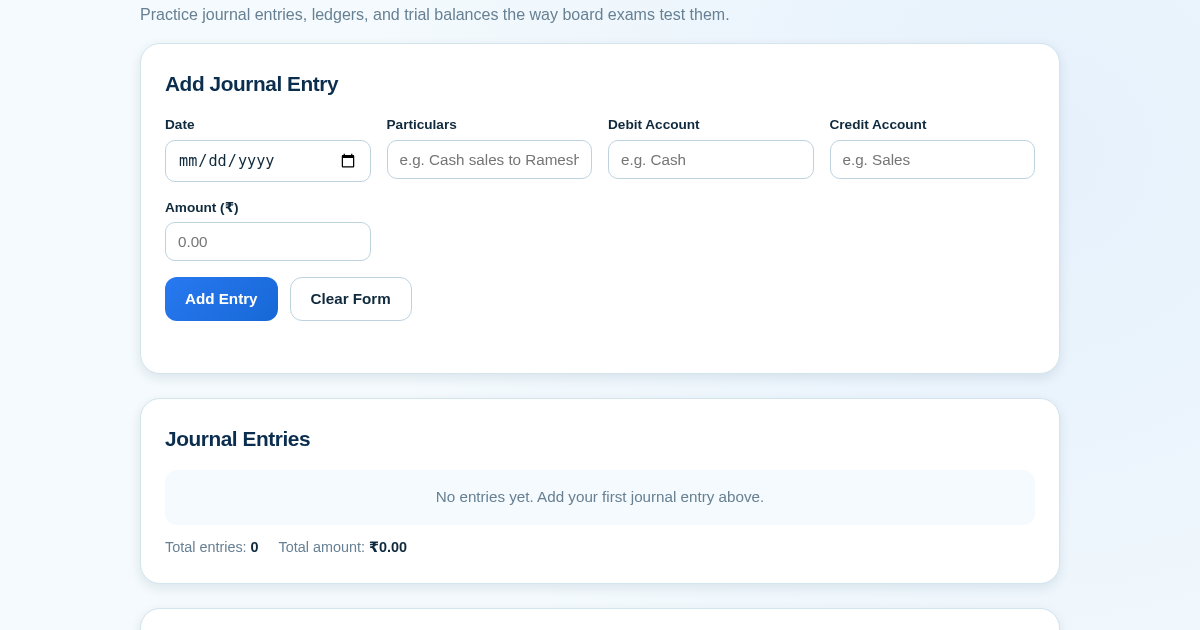
Ledger & Trial Balance Practice Tool
Commerce students in Class 10-12 need to practice journal entries and see how they flow into ledgers, trial balances, and balance sheets for board exams. This tool lets them enter transactions and instantly see the…
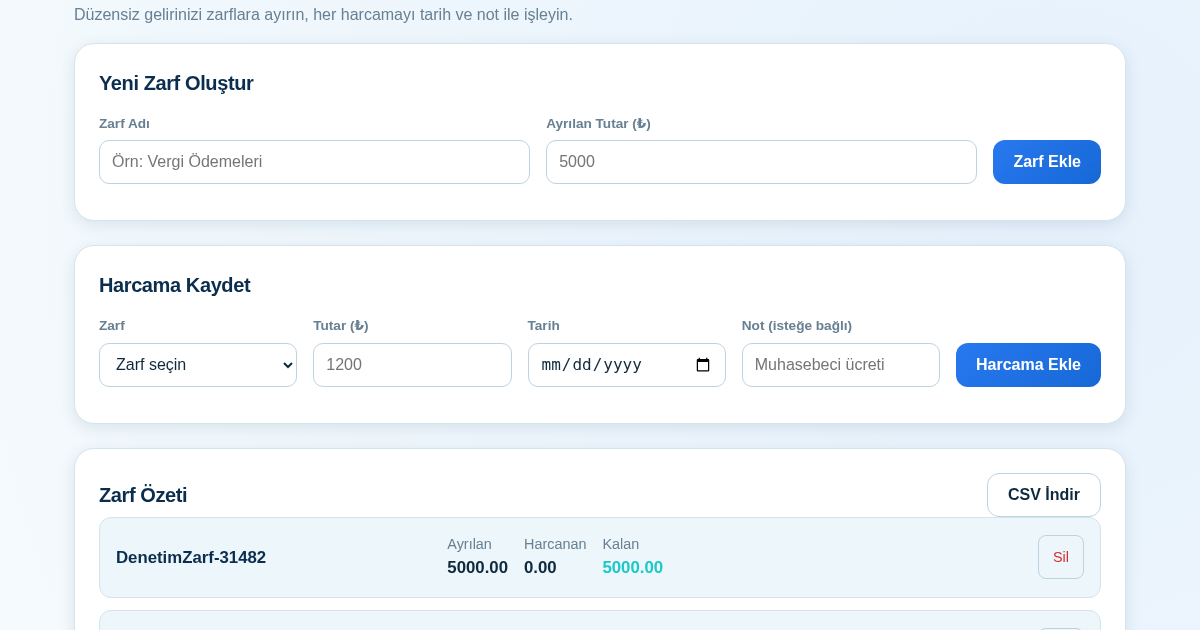
KASA - Serbest Çalışanlar İçin Zarf Bütçesi
Serbest çalışanlar düzensiz gelirlerini vergi, kira ve yaşam giderleri gibi zarflara bölerek bütçelerini düzenli tutabilir. Her harcamayı tarih ve not ile ilgili zarfa işleyerek ne kadar ayırdığını ve ne kadar…
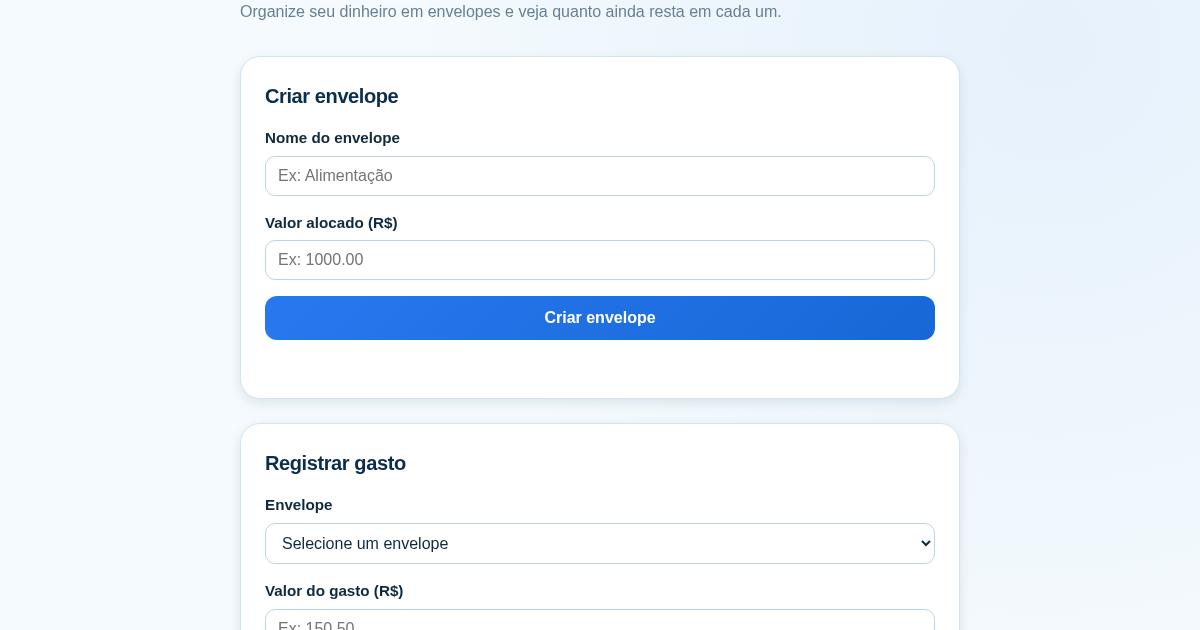
Calculadora de Orçamento por Envelopes (Pix)
Este aplicativo ajuda brasileiros a organizar seu dinheiro em envelopes de orçamento, como alimentação, transporte e lazer, sem precisar conectar uma conta bancária. Ele resolve o problema de controlar gastos do dia a…